An email signature generator creates a professional HTML footer for your emails — with your name, title, company, phone, and social links formatted consistently. Paste it into Gmail, Outlook, or Apple Mail. NexaLink's generator is 100% free, requires no signup, and adds no watermark.
To create a free email signature, pick a template below, enter your name, title, company, and contact links, then click Copy Signature and paste it into Gmail, Outlook, Apple Mail, or Yahoo — no signup and no watermark. Formatting, colors, and links are preserved automatically, so your signature looks professional in any email client.
Free Tool
Email Signature Generator
Create a professional email signature in seconds. No signup required.
Choose Your Template
Click a template to select it
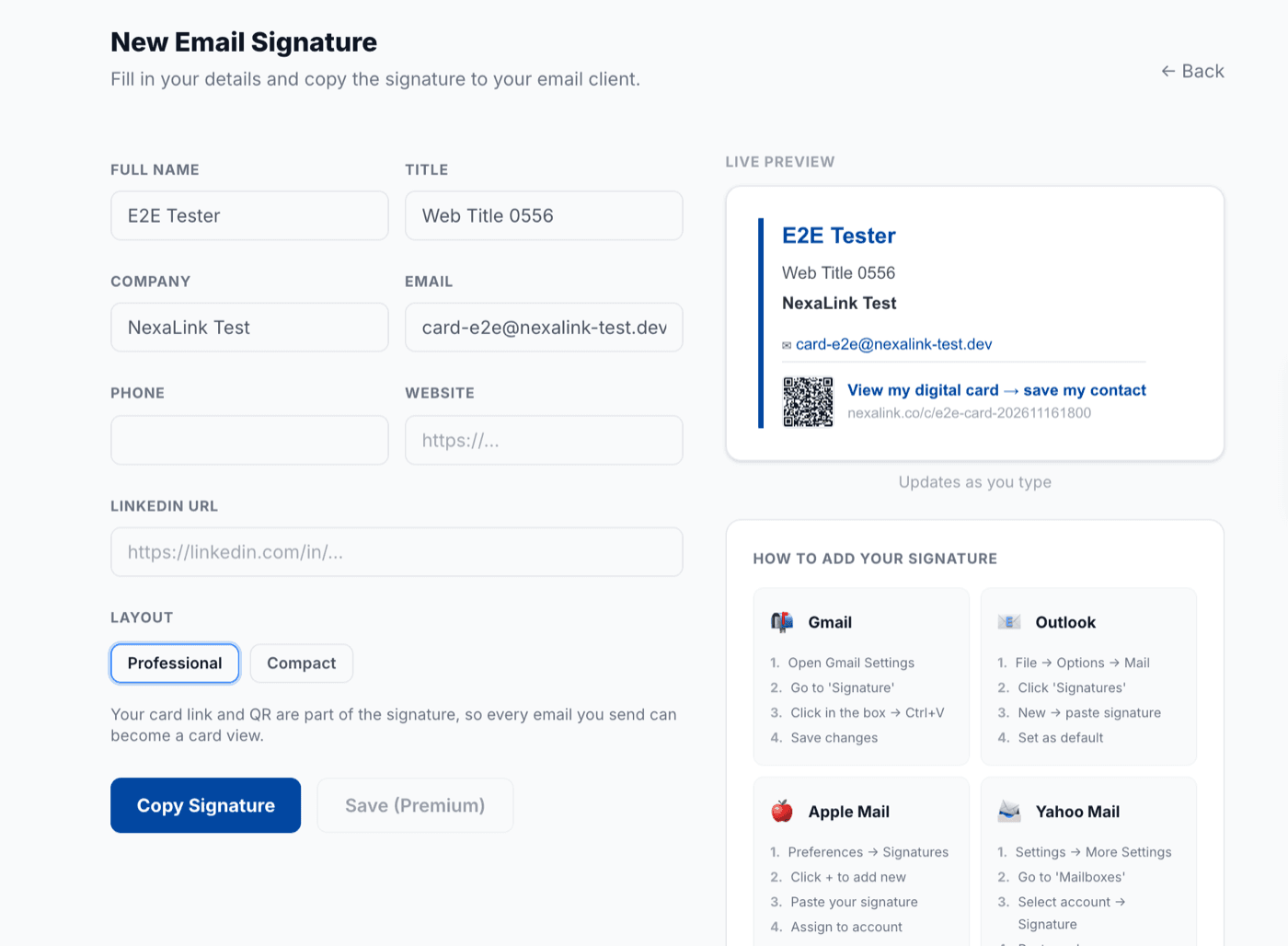
Your Details
Live Preview
New Message
To: alex.johnson@company.com
Subject: Quick follow-up on our meeting
Hi Alex,
Great meeting today! I'll send over the proposal by end of week...
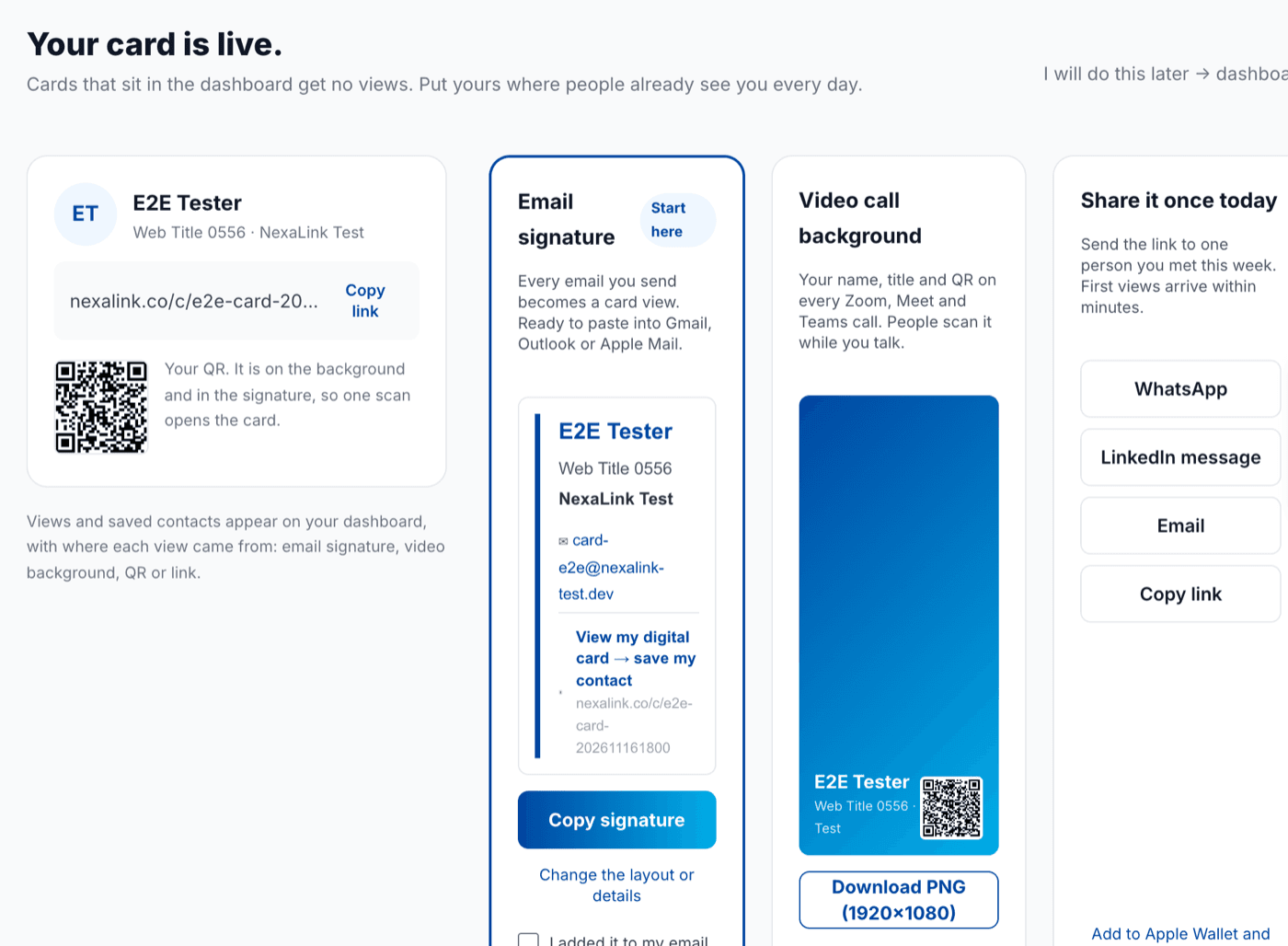
A card that sits in a dashboard gets no views. Put it where people already see you.
NexaLink puts your card in the two places a professional is seen every day: the footer of every email and the background of every video call. Both are made for you the moment your card exists.
1
Your card is made, so is its email signature
The moment you save your card, NexaLink builds an email signature with your details, your card link and a small QR. Copy once, paste into Gmail, Outlook or Apple Mail. From then on every email you send carries your card.
2
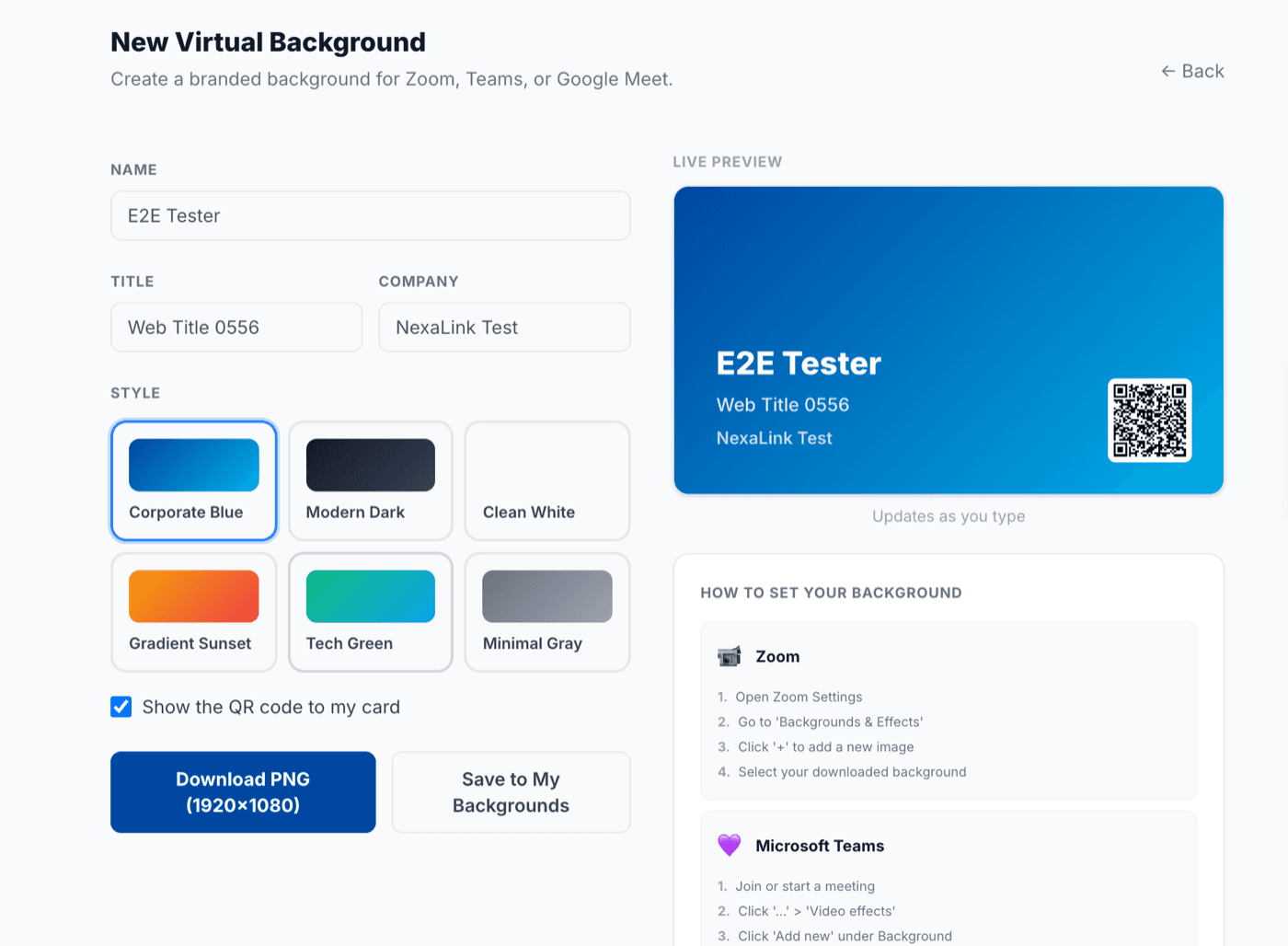
Your video-call background carries your QR
Download a 1920×1080 background with your name, title and card QR. On Zoom, Meet and Teams the people you talk to can scan it while you speak, and land on your card.
3
Every view is a lead you can see
Each link and QR is tagged, so your dashboard shows where a view came from: email signature, video background, QR or a shared link. When a visitor taps Save contact or sends their details back, they appear in your contacts with that source.
Yes, completely free with no signup required. Create unlimited signatures, copy them, and paste directly into Gmail, Outlook, Apple Mail, or any email client. There are no watermarks or hidden fees.
How do I add the signature to Gmail?
Copy your signature using the 'Copy Signature' button, then go to Gmail Settings > General > Signature. Click in the signature editor and paste (Ctrl+V / Cmd+V). The formatting, colors, and links will be preserved automatically.
Will the signature work in Outlook?
Yes. Copy the signature and go to Outlook Settings > Mail > Compose and reply > Email signature. Paste the signature into the editor. It works with Outlook desktop, web, and mobile apps.
Can I include social media links in my signature?
Yes. Add your LinkedIn and Twitter URLs in the form fields. They will appear as clickable links in your signature. The Professional and Modern templates display them prominently below your contact details.
Can I update my signature later?
Yes. Return to this page anytime, enter your updated details, and copy the new signature. For a signature that updates automatically everywhere, try NexaLink Digital Business Card — change your info once and it updates across all shared cards.
Want Your Signature to Stay Updated?
With NexaLink Digital Business Card, your signature links to a live profile. Update your details once, and your signature stays current everywhere.
How do I create a free email signature?
Choose a template above, enter your name, title, company, and contact details, then click "Copy Signature" and paste it into your email client's signature settings. It's free with no signup and no watermark, and works in Gmail, Outlook, Apple Mail, and Yahoo. The formatting, colors, and links copy across automatically.
What is an Email Signature?
An email signature is a block of text automatically appended to the end of your emails. It typically includes your name, job title, company, and contact information. A professional email signature helps establish credibility and makes it easy for recipients to contact you.
How to Use This Generator
Fill in your details in the form above
Choose a template style that matches your brand
Preview your signature in real-time
Click "Copy HTML to Clipboard"
Paste into your email client's signature settings
Tips for a Great Email Signature
Keep it concise - include only essential information
Use a professional font and colors
Include a call-to-action like scheduling a meeting
Add social media links for networking
Consider adding a QR code linking to your digital business card
Email Signatures by Industry
Industry-specific tips on what to include in your signature.
An email signature generator is a free online tool that creates a professional HTML email signature you can paste into Gmail, Outlook, Apple Mail, or any email client. It formats your name, title, company, phone, and social links into a clean, branded footer that appears at the bottom of every email you send.
Is the NexaLink email signature generator really free?
Yes, 100% free. No signup, no watermark, no hidden fees. Create as many signatures as you want and copy the HTML directly. We don't add 'Made with NexaLink' branding to your signature.
Which email clients are supported?
The generated HTML works with Gmail, Google Workspace, Outlook (desktop + web), Apple Mail, Yahoo Mail, Thunderbird, and any email client that supports HTML signatures. Mobile email apps on iOS and Android are also supported.
How do I add the signature to Gmail?
1) Create your signature using the tool above, 2) Click 'Copy HTML', 3) In Gmail, go to Settings → See all settings → General → Signature, 4) Paste the copied signature. It preserves formatting, links, and layout.
How do I add it to Outlook?
1) Create and copy your signature, 2) In Outlook, go to File → Options → Mail → Signatures, 3) Create a new signature, 4) Paste the HTML. For Outlook web: Settings → View all Outlook settings → Compose and reply → Email signature.
Can I include my photo or company logo?
The current free tool includes text-based signatures with social links. For signatures with photos, logos, and banners, use the NexaLink mobile app (Premium plan) which generates rich email signatures with embedded images.
Will the social media icons show up in emails?
Yes. The generator creates HTML with inline-styled social links that display consistently across all major email clients. LinkedIn, Twitter/X, and website links are included as clickable text links for maximum compatibility.
Can I create different signatures for different purposes?
Yes. Generate as many signatures as you want — one for client emails, another for internal communications, a third for your side business. Each is independent and free.
Do I need to install anything?
No. The generator runs entirely in your browser. No downloads, no extensions, no account creation. Create your signature and copy the HTML — that's it.
Is there a signature generator for specific industries?
Yes. NexaLink offers industry-specific email signature guides for real estate agents, lawyers, healthcare professionals, financial advisors, and 50+ other professions — each with tailored tips for what to include.
What should I include in my email signature?
Essential: name, title, company, phone, email. Recommended: LinkedIn profile, website, scheduling link (Calendly). Optional: company logo, certifications, pronouns, office address. Keep it under 5 lines — shorter signatures get more clicks.
Can I track clicks on my email signature links?
The free web tool doesn't include tracking. NexaLink's mobile app (Premium) generates trackable signatures that show how many people clicked your links, called your phone, or visited your website from your email signature.